

Hardware Engineering Manuals
Hardware Setup Manuals & Driver Guides
Technical specifications, wiring pinouts, baud rate settings, and ESC/POS configuration manuals for all supported retail hardware.
Technical Manuals
Step-by-step technical documentation to configure retail peripherals with Morebos on Windows, Android, and macOS.
Device setup guides
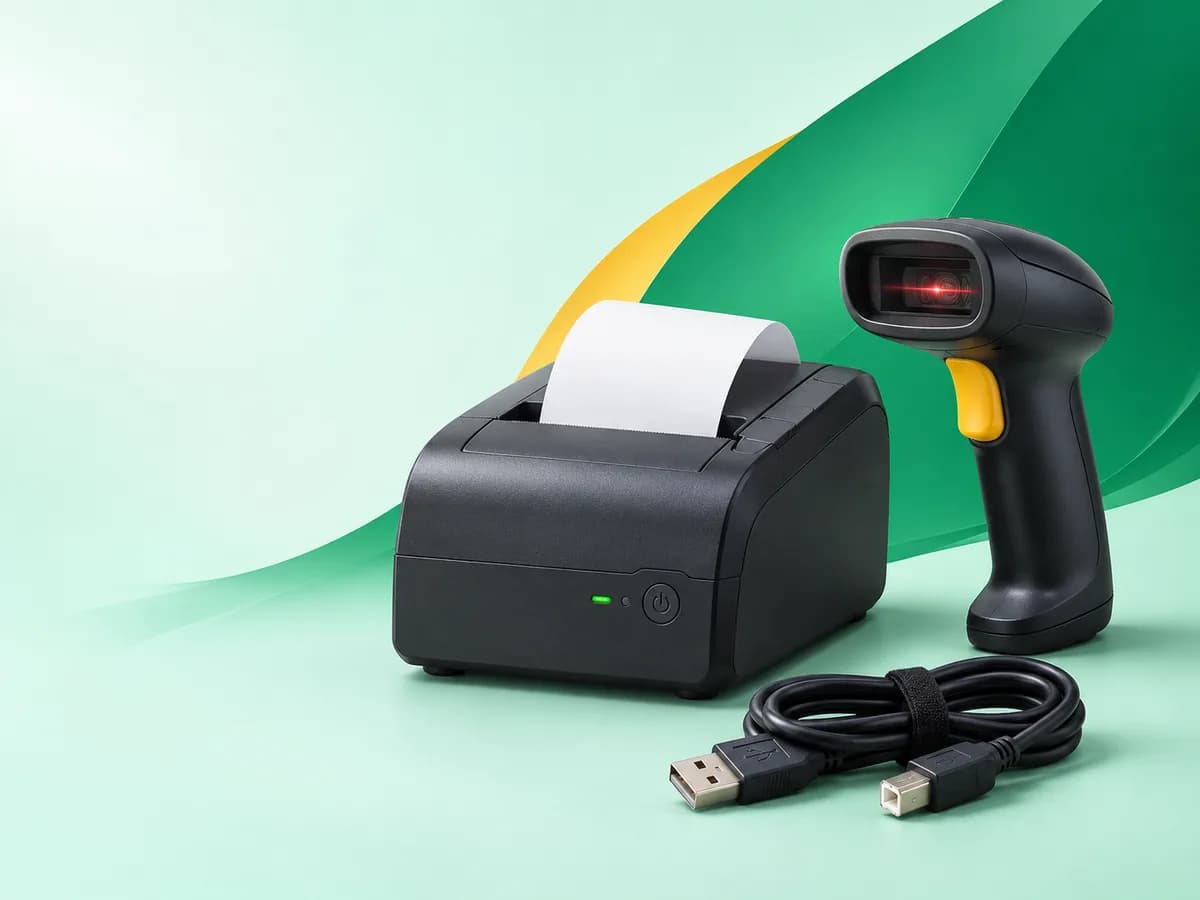
80mm Thermal Receipt Printers (USB & LAN Network)
Baud Rate: 115200 | Emulation: Standard ESC/POS | Paper Width: 80mm (3 1/8")
- Connect printer via USB cable to POS terminal or via Ethernet LAN cable to store router.
- Install vendor driver (XP-80, Epson TM-T20, or Sunmi Cloud Printer).
- Ensure Windows Printer Properties paper size is set to 80x297mm or Continuous Receipt.
- In Morebos Settings > Hardware > Select Thermal Printer > Test Diagnostic Print.
Omnidirectional 1D/2D Barcode Scanners
Interface: USB HID Keyboard Wedge | Scan Rate: 1,500 scans/sec | Angle: 360-degree
- Plug USB scanner cable into an active USB 3.0 port on the POS terminal.
- Scan the "Restore Factory Defaults" barcode from the included quick-start sheet.
- Scan the "Add CR/LF Suffix (Enter Key)" configuration barcode to auto-submit scanned items.
- Test scanning standard EAN-13, UPC-A, and Code-128 barcodes into the Morebos search field.
Heavy-Duty Steel Cash Drawers
Solenoid Pulse: 12V / 24V DC | Connector: RJ11 / RJ12 6-Pin standard
- Plug the RJ11 cable from the back of the cash drawer directly into the DK (Drawer Kick) port of the thermal printer.
- In the thermal printer driver settings under Device Settings, set "Cash Drawer #1: Open Before Printing" or "Open After Printing".
- When Morebos finalizes a cash sale, the printer sends a 24V pulse to automatically pop open the till drawer.
More help resources
Need help from Morebos?
Reach our team by phone or email.